 Simple Flight Suite
 Simple Flight Tune
Find out what your PC is actually doing — and whether that change you made helped.
Thank-you gift Windows app. A thank-you gift for anyone who supports my work.
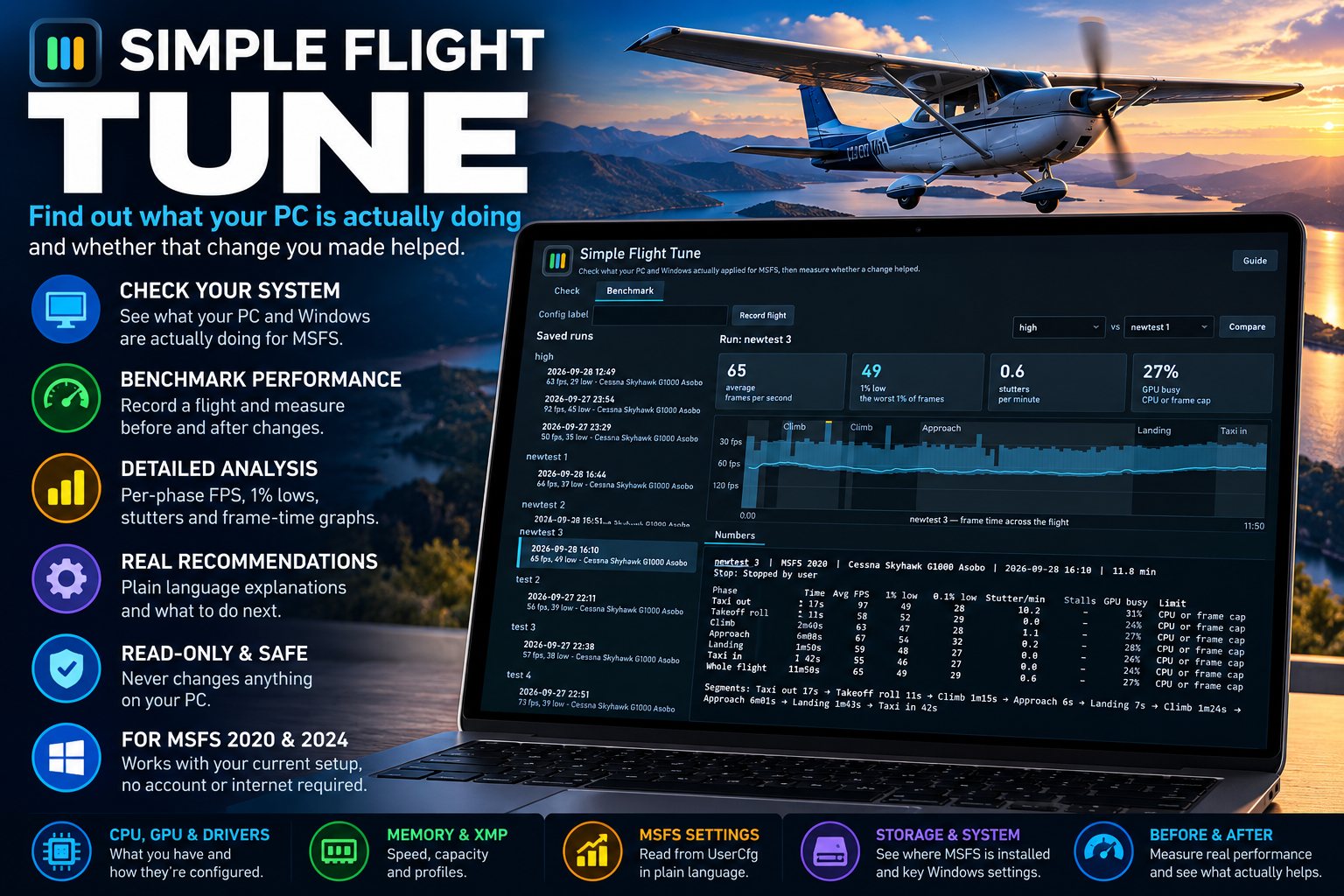
Flight sim performance advice is mostly folklore. Enable this in BIOS, turn that setting down, and you will gain 15 fps — except nobody can show their work, and the tweak that transformed one person's rig does nothing on yours.
Simple Flight Tune does two things about that. It tells you what your machine is actually set to, and it measures whether a change you made made a difference — honestly, including when the answer is that we cannot tell yet.
It never changes anything on your PC. Every check is read-only.
Check: What Your Machine Is Actually Doing
- Memory speedWhether XMP or EXPO is enabled, or your RAM is quietly running at JEDEC defaults. This is the single most common thing people have wrong, and it costs real frames.
- Resizable BAROn or off, and whether your hardware supports it at all.
- CPU, GPU and driverWhat you have, what version you are on, and how old it is.
- Windows settings that matterPower plan, virtualisation and memory integrity, and what each one does to sim performance.
- StorageWhere MSFS is installed, and whether that drive is the fast one.
- Your MSFS settingsRead out of UserCfg into a readable list, rather than six menus deep in the sim.
- Every finding explainedWhat it means and what to do about it. The app tells you where the setting lives and you decide — nothing is changed for you.
Benchmark: Did That Actually Help?
- Fly a route, change one thing, fly it againYou fly a short standard route on autopilot. The app watches — it never touches the controls — and asks for a comparison when you are done.
- Split by phase of flightFrame times are recorded alongside the aircraft's position, so it knows which numbers came from taxi, takeoff, climb, cruise and approach. Cruise over open water and a busy taxiway are different workloads, and averaging them together hides everything interesting.
- Averages, 1% lows and stuttersSide by side, per phase.
- A frame-time trace of the whole flightSo you can see where the rough parts were instead of inferring them from an average.
- Percentile curves overlaidWhich is how you see a change that helped your worst frames but not your average, or the reverse.
- A verdict in plain EnglishAt the top, saying what the result actually means.
- A live strip while you flyFrame times as they happen, with the current phase, frame rate and elapsed time always on screen.
It Tells You When Not to Believe It
- Noise floorFly the same route twice with no changes and you will not get the same number. The app learns how much your runs vary and refuses to call a winner when the change is smaller than that. A +4 fps improvement that sits inside your own run-to-run spread is not a result, and it will say so.
- Shader cacheAfter a reinstall, a driver update or a cleared cache, your first flight is slower for reasons that have nothing to do with what you changed. It recognises the pattern and tells you to throw that run away.
- Faster is not always betterA change can raise your average and make the sim feel worse. When the average goes up but stutters go up too, it says that rather than reporting a win.
- Different flightsIf two runs did not cover comparable ground, the comparison is weakened and labelled as such.
- Dropped frames and background timeIf MSFS was minimised or not being drawn, that time is excluded rather than quietly counted as a stall.
- Same method for settingsUltra against High, DLSS against TAA, terrain LOD — it works the same way on MSFS graphics settings as on BIOS changes.
Your Runs, and Sharing Them
- Every recording is keptRename runs as you work out what you were testing, delete the ones that went wrong, and compare any two at any time.
- Group and averagePut several runs under one label and the app averages them, which is how you get a result you can trust for a small change.
- Forum-ready summariesCopy a comparison as your hardware, the setting that changed, the per-phase numbers and the caveats, formatted to paste into a thread. Charts save as PNG, because a post with a graph gets read.
- Nothing identifyingReports carry your hardware and settings only — no username, no computer name, no drive serial numbers.
Getting It Running
Windows 10 or 11, 64-bit, with MSFS 2020 or MSFS 2024. Frame capture needs administrator rights while recording — that is a Windows requirement for the capture method, not a choice. Intel PresentMon is included with the installer.
On This Page
- Check: What Your Machine Is Actually Doing 7
- Benchmark: Did That Actually Help? 7
- It Tells You When Not to Believe It 6
- Your Runs, and Sharing Them 4
Works With
- Simple Profile Manager
Save a settings profile, benchmark it, and switch back if it did not help.
- Simple Dispatch
Benchmark with a heavy add-on set enabled and again with it dormant, to see what your Community folder actually costs.
Simple Flight Planner, Simple Flight Tracker, Simple Settings Sheet, Simple Flight Academy, Simple Traffic Compiler and Simple Flight Traffic are free to everyone. The rest, this one included, are what I send back to people who support my work — all of them, together.